Managing Online SPES - As Employer
How to Register as an Employer, Post Pledges and Contract?
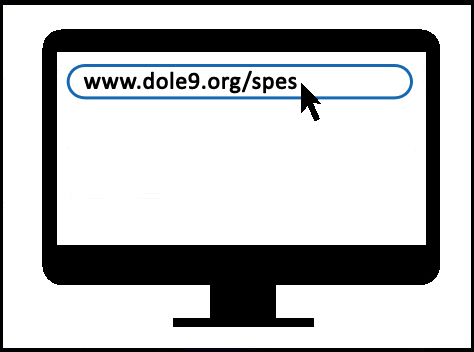 Go to www.dole9.org/spes
1
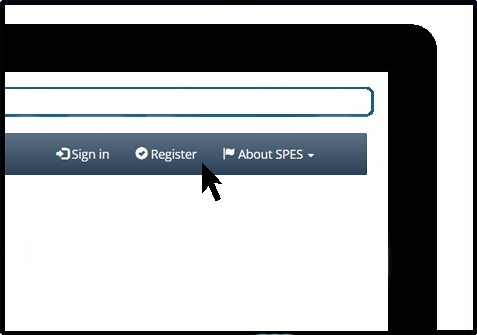 Click 'Register'
2
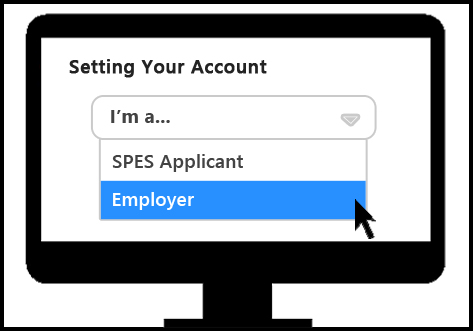 Choose I'm a: Employer and the fill up the form with your desired username and password
3
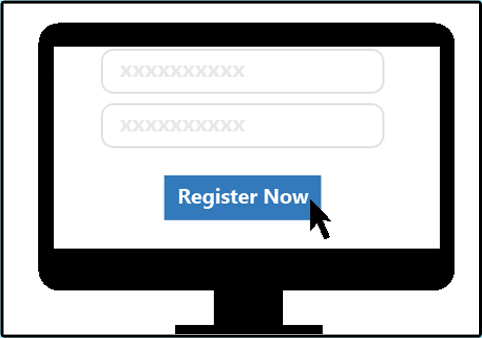 Click 'Register Now' button
4
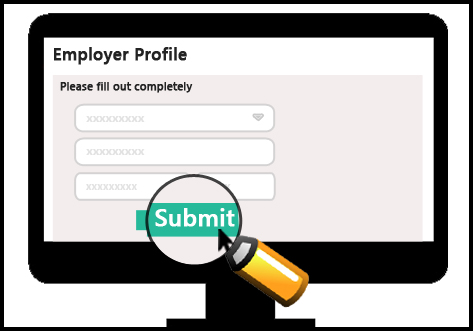 Fill up Profile Form with your company's information and then click submit
5
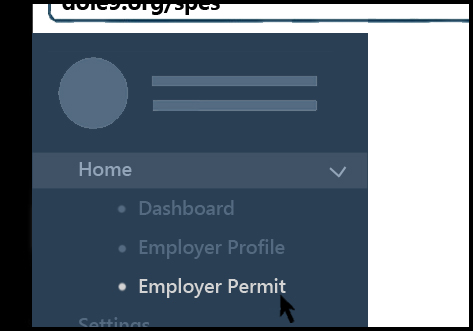 Click 'Employer Permit' from the Home Menu
6
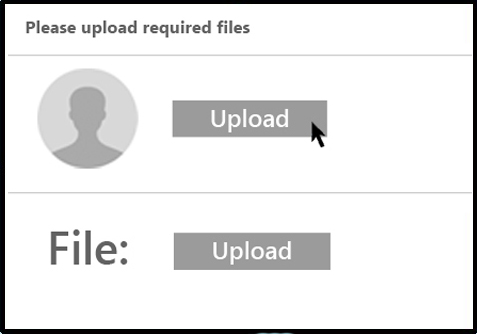 Upload the logo of your company or picture of the owner, president or manager and scanned copy of:
- If you are a private company/institution, you can use either Business Permit, DTI, SEC, CDA.
- If you are a public office/GOCC, you can skip this process.
7
 Wait until DOLE Field Office in your area will verify and approve your registration. Once your registration has been approved by DOLE, you can now add/post pledges.
8
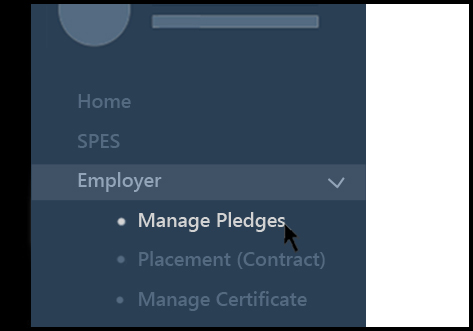 Click 'Manage Pledges' from the Employer Menu
9
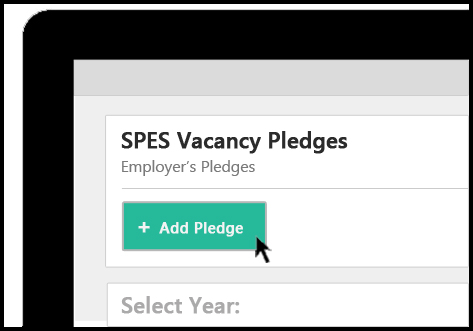 Click 'Add Pledge' button
10
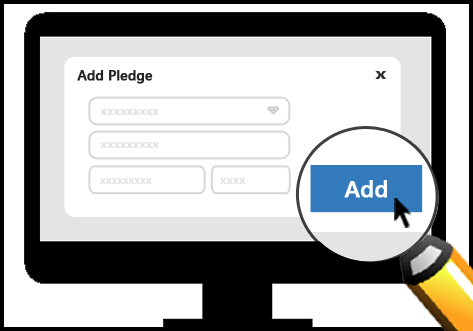 Fill up the form and then click 'Add'
- You need to upload the scanned copy Pledge of Commitment into the system.
- You need to add/create pledge of entry according to the number of positions you have in your actual Pledge of Commitment sheet.
11
 Wait until LGU PESO in your area will verify your pledges and DOLE Field Office will approve it. Once it has been approved, you can now proceed to next step.
12
 You can now start monitoring and receive applicants. It is your discretion to short list applicants and once the number of applicants satisfies the number of vacancy posted/added for a pledge, you can now start creating contracts. To do so:
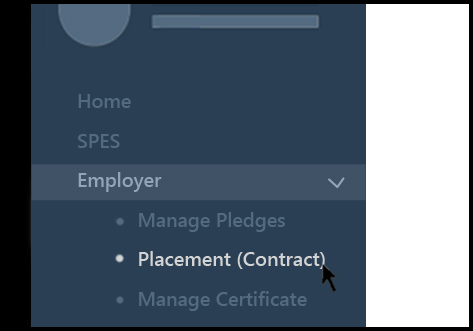 Click Placement (Contract) from the Employer Menu
13
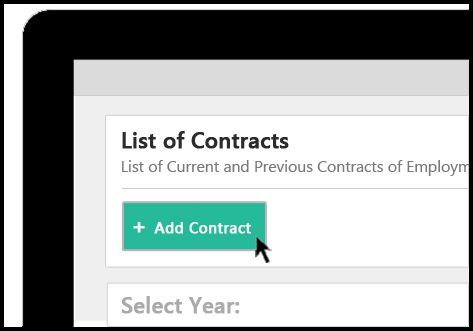 Click 'Add Contract'
14
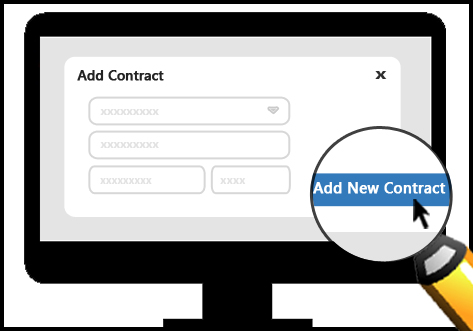 Fill up the form, select the necessary pledge and then click 'Add New Contract' button
15